
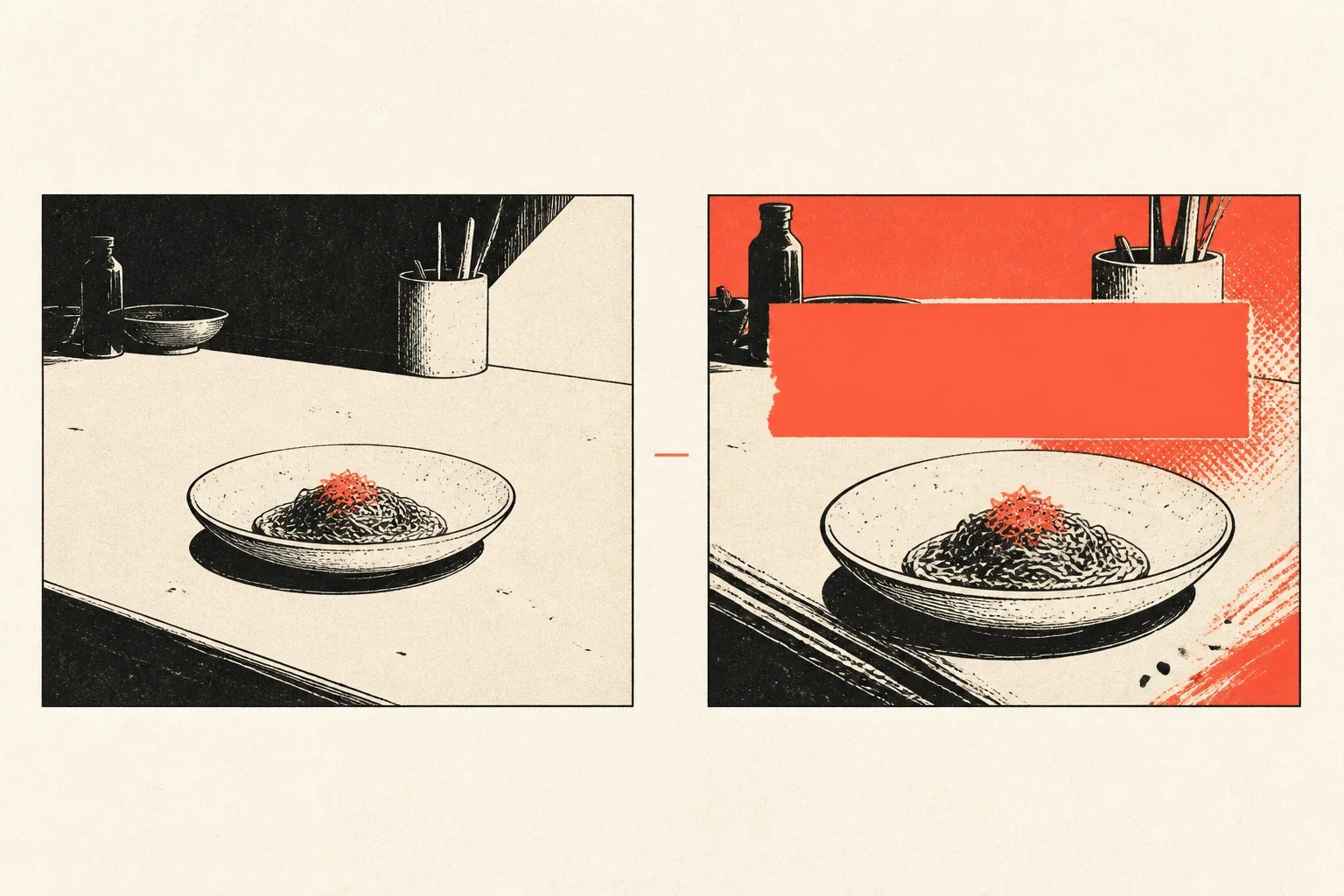
YouTube lets you upload a thumbnail for each language on a long-form video, on the same file as the dubbed audio. Viewers see the image that matches their language setting, so the first frame should read in the language they hear. You add that image in Studio on a computer, then you add a translated title and description so viewers can find the video in their own language.
What is a localized thumbnail on a dubbed YouTube video?
A localized thumbnail is a custom image attached to one language on a long-form video, not a second upload of the video itself. YouTube Help, Add Multi-language features to your videos, covers language thumbnails on long-form. Viewers are shown the thumbnail that matches their language setting. Shorts can take extra audio, but the extra image is a long-form control.
The language image is a second file, shown when that language is the viewer's setting. The first frame the viewer sees is the file that matches that setting. You add that file in Studio, on the Languages row for that language.
If the audio is Spanish and the picture is still English, the person who just arrived in Spanish has to decode the image before they hear you. Open the video in Studio, look at both files, and play the track. If they disagree, the language work is only half finished.
You already design the English thumbnail so the type reads at a glance. Do the same job in the dubbed language. If the type is still English, the person who clicked from a Spanish setting has to translate the picture before the voice starts.
Keep the thumbnail with the audio, native type on the first frame and native voice in the player. The translated title and description are a separate Studio step, done under Subtitles, not under Thumbnail.
How do you add a localized thumbnail in YouTube Studio?
You add it on a computer, on the same long-form video that already has the dubbed audio. The eight steps are Content, the video, Upload thumbnail, Languages, the language, Thumbnail, Add, then Update. Multi-language audio is available to creators with Advanced features, and the thumbnail control lives in the same Languages panel as the dub.
- Sign in to YouTube Studio on your computer.
- From the left menu, select Content.
- Click the video you'd like to edit.
- Click Upload thumbnail and upload your thumbnail image.
- From the left menu, select Languages.
- Click the name of the language you want to add a custom thumbnail for.
- Next to Thumbnail, click Add and select an image to upload.
- Click Update.
The Content-step file is the default thumbnail. The Languages Thumbnail file is the language-specific one. Two files sit on one video, and Studio serves the matching file for the viewer's language setting.
After the image is on the language, add a translated title and description. Sign in to YouTube Studio, from the left menu select Subtitles, then select the video. Select ADD LANGUAGE, click Add under Title and description, enter the copy, and select PUBLISH. The thumbnail is the first frame. Enter the translated title and description on that same language.
How to Select Which Videos To Dub in YouTube Studio starts in Studio under Analytics, then Content, then the last 28 days. You will see your most-watched videos on that Content tab. YouTube Dubbing Workflow Setup: The Complete Guide for Creators covers the rest of the dubbing pass. Add the image on the language that already has a custom track.
If Languages is missing from the left menu, open Studio on a computer and confirm the item is there before you hunt for a thumbnail control that cannot exist. Stay on a computer for this path, because that is how those Studio steps are written.
Why should the thumbnail match the dubbed audio?
Native type on the image should match native audio in the player, because that is the agreement the thumbnail makes with the track. If one is native and the other is not, the viewer who just arrived in that language has to translate the first frame before they hear you. The click and the voice have to agree.
Human Voice Over ships every dub with a localized thumbnail re-rendered in the target language's native typography. You can upload that file in Studio, or you can make the image yourself if the artwork is already on your machine. Put the file on the language you already recorded, next to Thumbnail, then click Update.
Export the image, keep the faces and the layout, and replace the English type with native type. Then run those Studio steps on each language that already has a custom track. Skip languages with no dubbed audio yet, because a native thumbnail on a machine auto-dub still sends people into a voice that is not yours.
Check the result the way you already check a thumbnail in English. Change the YouTube language setting, reload the watch page, and confirm the image. The thumbnail that shows is the one that matches that setting.
Nick DiGiovanni's videos are dubbed with Human Voice Over in German, French, Brazilian Portuguese, and Spanish. You can post content to one channel with all audio tracks attached to a single video.
Open Studio, open Languages on that video, and add the image for the language you already recorded.